 fe7fd97e6c
* #126: Add issue to changelist

* #128: Add base CHANGELOG

* Issue #128, #126: Add first entries

* Link to issue

* #128: Adapt contribution guidelines to new Changelog

* #128: Tweak README to include changelog

* #128: Fix link to changes

* Issues #126, #129, #128: Add changelog entries

* #128: Add entries for past PRs

* #128: Remove extra section to changelog

* #128: Rename as suggested

* #128: Make link to changelog relative to work in forks/PRs
4.4 KiB
Hugo Scroll
A Hugo theme for pretty, quick and simple single-page websites.

Live demo
The current default branch is automatically deployed and can be seen at https://zjedi.github.io/hugo-scroll/.
As a fallback, see a screenshot which may be a bit outdated: 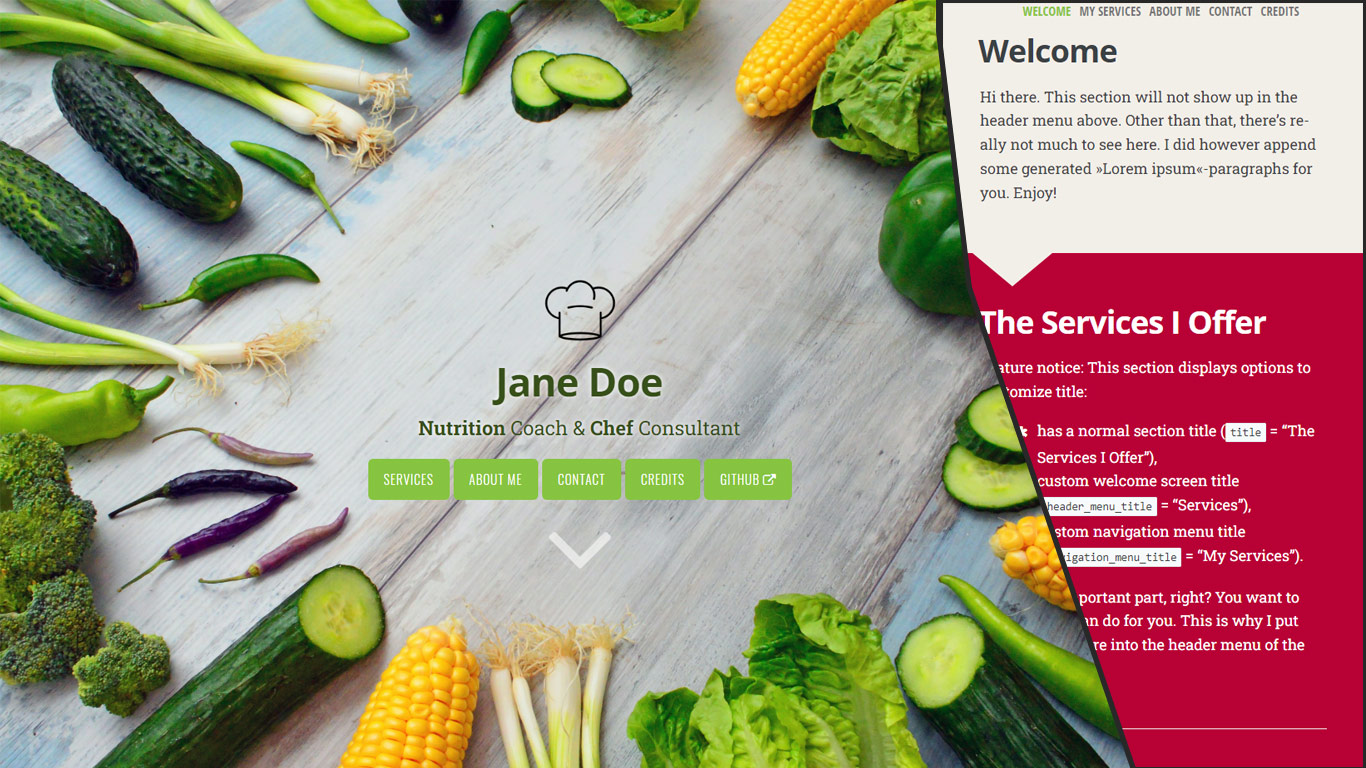
Installation
If you already have a Hugo site on your machine, you can simply add this theme via
git submodule add https://github.com/zjedi/hugo-scroll.git themes/hugo-scroll
Then, adjust the config.toml as detailed below & in the file comments.
Playing around with our example site
If you simply want to check out the exampleSite, you can run
git clone https://github.com/zjedi/hugo-scroll.git hugo-scroll
cd hugo-scroll
hugo server --source=exampleSite --themesDir=../..
For more information, read the official Hugo setup guide.
If you are starting fresh, simply copy over the contents of the exampleSite-directory included in this theme to your source directory. That should give you a good idea about how things work, and then you can go on from there to make the site your own.
Please check out the config.toml included in the exampleSite of this theme.
You can add a new section to the homepage by running hugo new homepage/my-new-content.md (or craft the file manually)
To create a page separate from the homepage, run hugo new my-new-page.md
Features
Icons
This theme includes the full set of Fork Awesome 1.2.0 Icons. Use the {{<icon>}}-shortcode with the respective "fa fa-ICONNAME"-class to use an icon directly in your .markdown files à la
Look at this nice »envelope«-icon: `{{<icon class="fa fa-envelope">}}`. I took this from https://forkaweso.me/Fork-Awesome/icon/envelope/ :-)
Header logo
Configured in _index.md, see exampleSite: header_logo: "images/chef-hat.png"
Footer version information
In order to see technical version information (extracted from Hugo's GitInfo)) set the following general option in your config.toml: enableGitInfo = true
External links
You can add an external link in the menu, see external.md in the exampleSite.
You can also use extlink shortcode to create a link opening in a new tab:
Visit as at {{<extlink text="Instagram" href="https://www.instagram.com/yourInstagramName/">}}
Referencing and showing icons in front of the link text is possible with a new parameter icon:
Visit as at {{<extlink icon="fa fa-instagram" text="Instagram" href="https://www.instagram.com/yourInstagramName/">}}
Customizing CSS
Add a custom_head.html-file to your layouts/partials-directory. In there you may add a <style>-tag or you may add a <link>-tag referencing your own custom.css (in case you prefer to have a separate .css-file). Checkout the custom_head.html-file from the exampleSite-directory to get started and to find more detailed instructions.
Issues / Feedback / Contributing
Please use GitHub issues and Pull Requests. See contributing guideline for more.
Special Thanks 🎁
- Jan Raasch, original author of theme
- Yonatan Wolowelsky, author of GhostScroll theme, which formed the basis of this Hugo theme.
- Pexels, for supplying those wonderful free stock photos on the exampleSite.